Introduction
This article walks through how to install Balance of Plant (BOP) product certified templates onto your asset models using Model Manager. Beginning in Bazefield 12.1, Core BOP packages automatically write point and device templates to the Certified Template Repository, making them available to deploy from Model Manager as needed.
Templates covered by the Core BOP package include those for asset types such as Meter, Circuit, and Power Plant Controller.
Prerequisites
Bazefield Portal 21.1 or later — Core BOP packages from 12.1 onwards publish templates automatically to the Certified Repository.
Model Manager access — ensure the Model Manager application is visible in your portal navigation under Administration > Configuration > Model Manager. Contact your system administrator if it is not available
Navigate to Model Manager
Log in to the Bazefield Portal.
From the Administration > Configuration menu, open Model Manager.
Select the Certified Repository view from the left-hand navigation panel.
Filter for BOP Templates
The Certified Repository may contain templates for multiple domains. Use the filter options to isolate BOP templates before deploying.
In the filter bar at the top of the template list, locate the Domain filter.
Select Balance of Plant from the dropdown. The template list will update to show only BOP templates.
Set the Version filter to Latest to ensure you are deploying the most up-to-date version of each template.
Preview a Template (Optional)
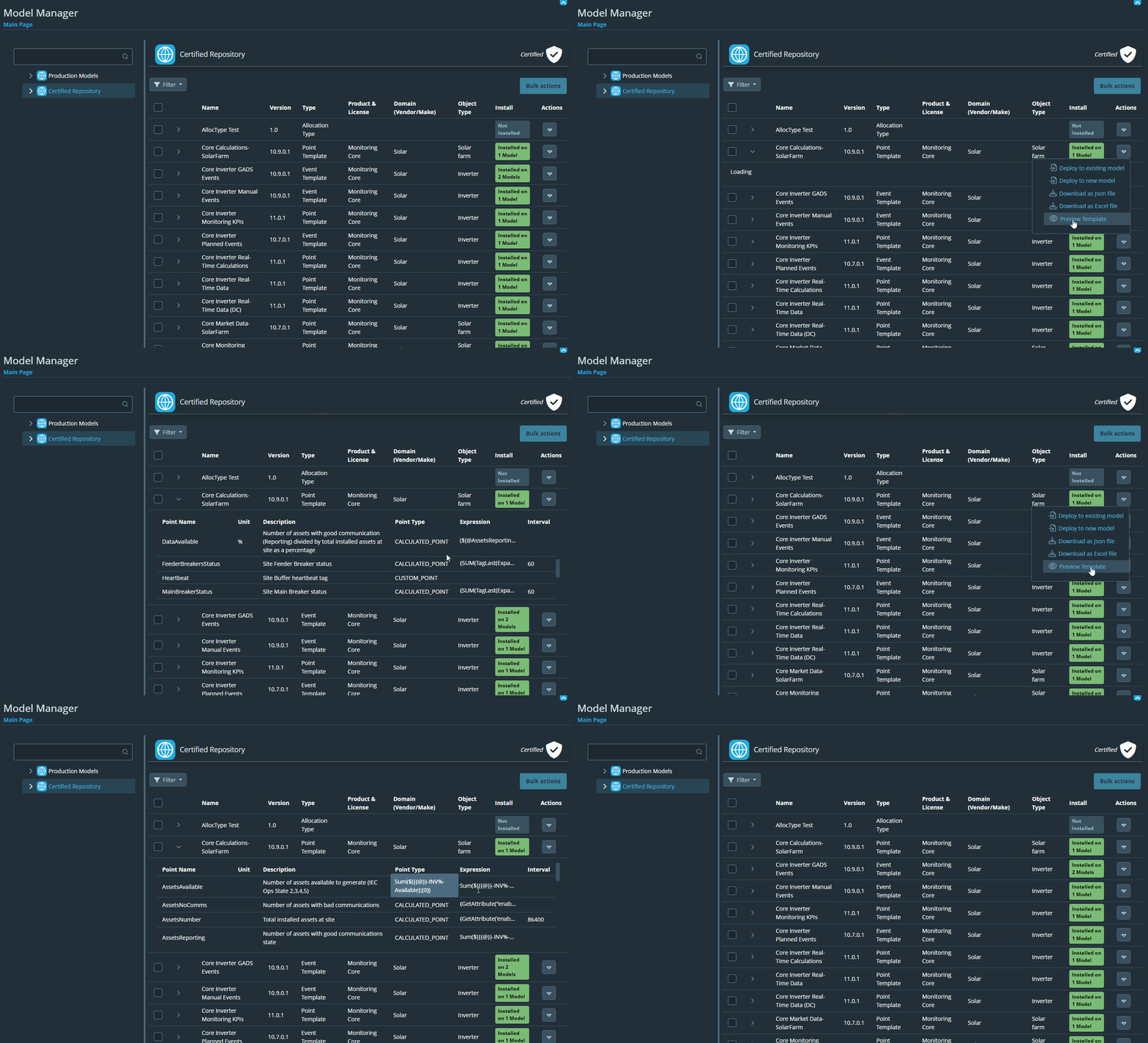
Before deploying, you can expand any template to preview its contents. Click the left arrow next to a template row to drop it down and inspect its fields.
Note: Preview is currently available for Point Templates, Event Templates, and Device Templates.
Deploy BOP Templates in Bulk
To install multiple BOP templates in a single operation:
Add to the Filter for BOP templates an additional filter for Object Type
For each BOP Object Type
Use the checkboxes on the left of each template row to select the templates you want to deploy.
Click Bulk Actions in the toolbar, then choose Deploy to existing model.
Select the target BOP asset model from the dialog, or create a new one
Confirm the deployment. All selected templates will be applied to the chosen model.
Note: Templates selected for bulk deployment must share the same object type.
Verify the Installation
Once templates have been deployed, confirm the installation through the Production Models view.
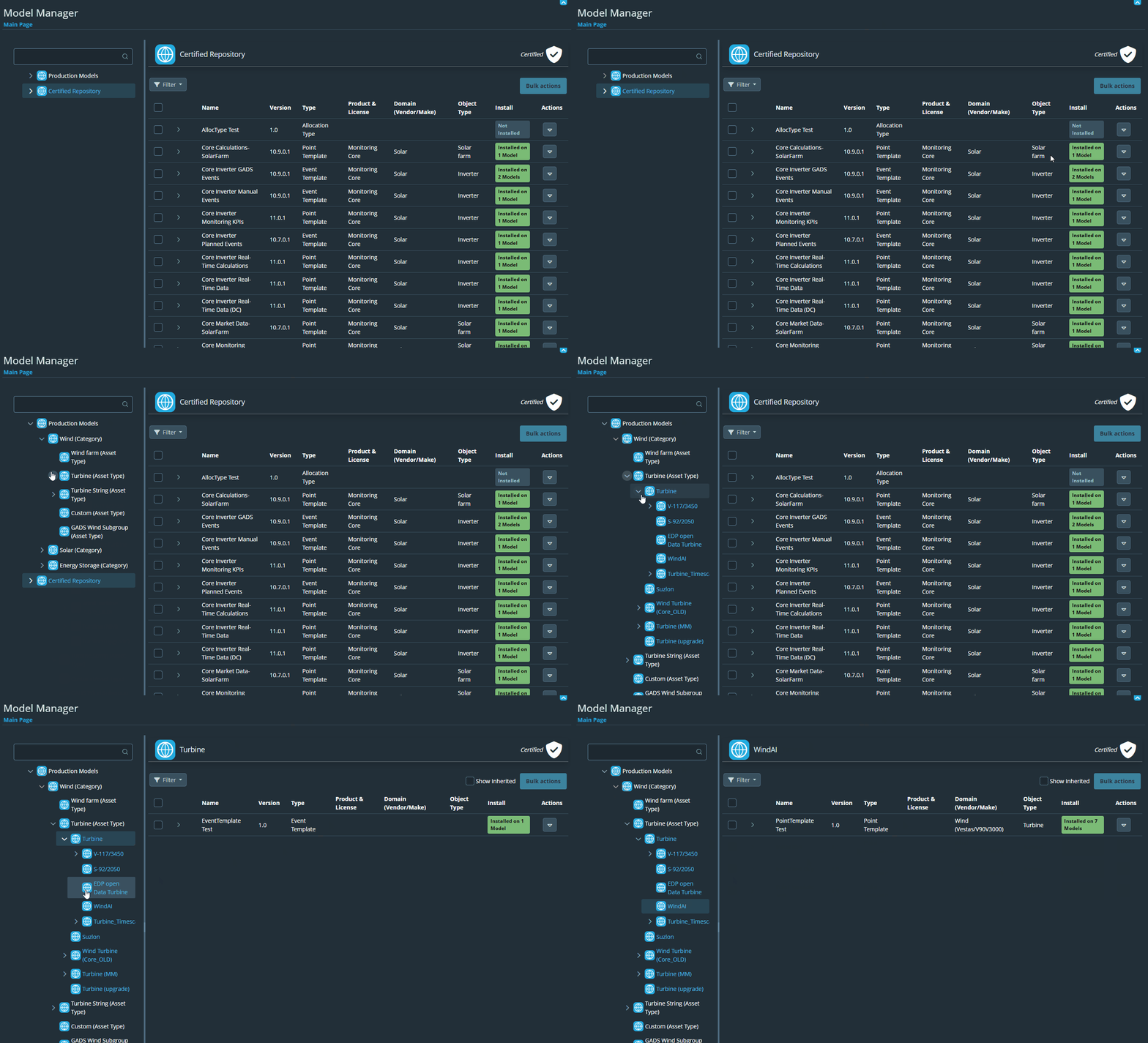
In Model Manager, navigate to the Production Models view from the left-hand navigation panel.
Select your BOP asset model from the model tree.
The template list will display all templates currently installed on that model. Newly deployed BOP templates should appear in the list.
Upgrade an Installed Template
If a newer version of a BOP template becomes available after a package update, you can upgrade directly from the Production Models view.
Install the latest Core BOP Package from the Bazefield Repository
Select your BOP asset model in the Production Models tree.
In the template list, templates with an available upgrade are indicated by a blue highlight in the Install column.
Click the upgrade action for the template to apply the latest version.
On upgrade, branched points will not be affected automatically.